
Apps
Setting up Google Workspace access
For Google Workspace admins: add Zenning AI as a trusted app so your whole team can connect Gmail, Drive, Calendar, Docs, and more.
What this guide is for
If your company runs on Google Workspace, your Workspace admin will usually need to approve Zenning AI before teammates can connect Gmail, Google Drive, Google Calendar, Google Docs, Sheets, Slides, and the rest of the Google apps in our App Directory. This guide walks an admin through marking Zenning AI as a trusted app inside the Google Admin console. It takes about a minute.
Tip: If you are not a Google Workspace admin yourself, send this page to whoever manages admin.google.com for your team and ask them to follow the steps below.
Before you start
You will need an account with Super Admin (or equivalent app-management) permissions on your Google Workspace, and access to admin.google.com. Have the Zenning AI client ID handy — it is provided in step 4 below.
Adding Zenning AI as a trusted app
Sign in to admin.google.com with your Google Workspace admin account, then follow these steps:
- 1
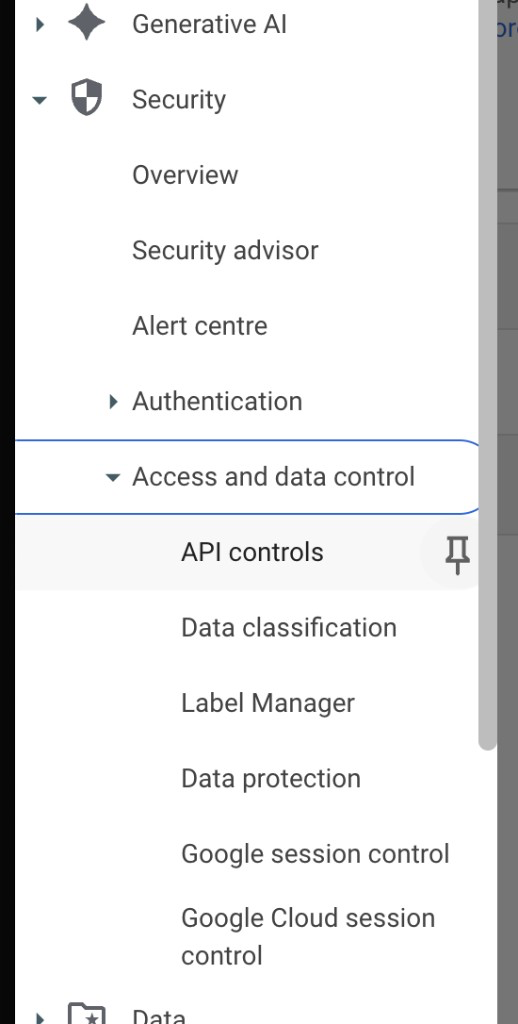
In the left-hand menu, open Security → Access and data control → API controls.
- 2
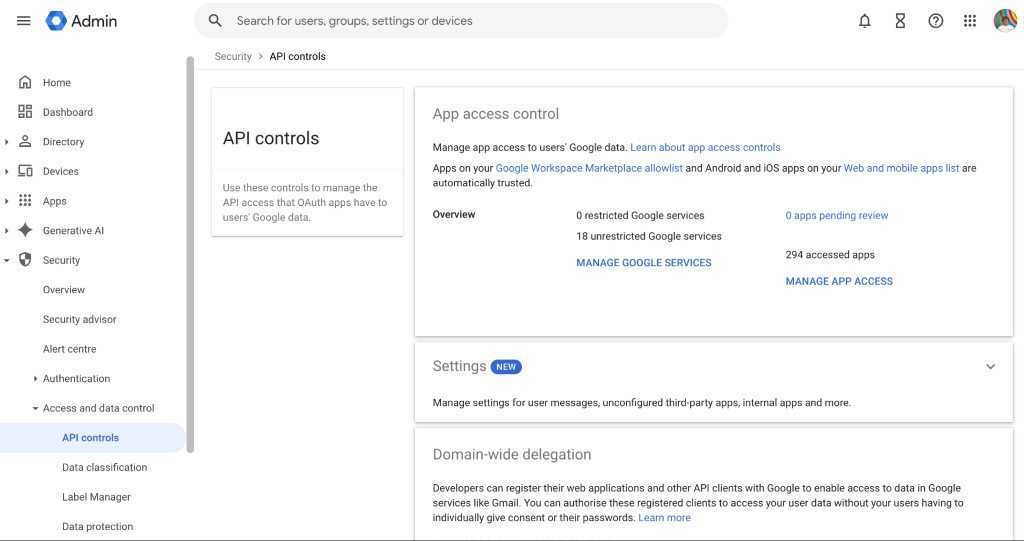
Under App access control, tap Manage Google Services or Manage Third-Party App Access (depending on your console layout).
- 3
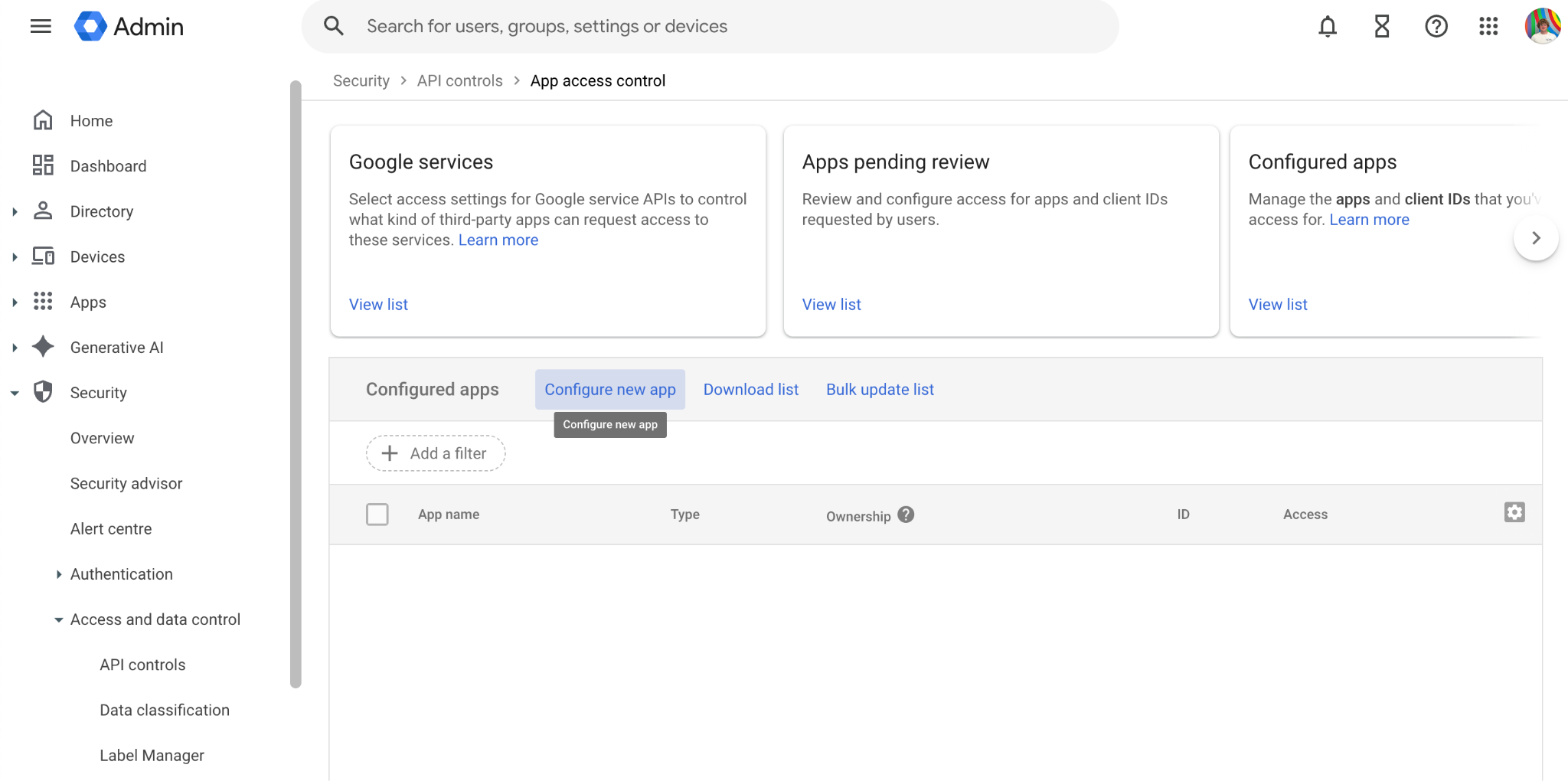
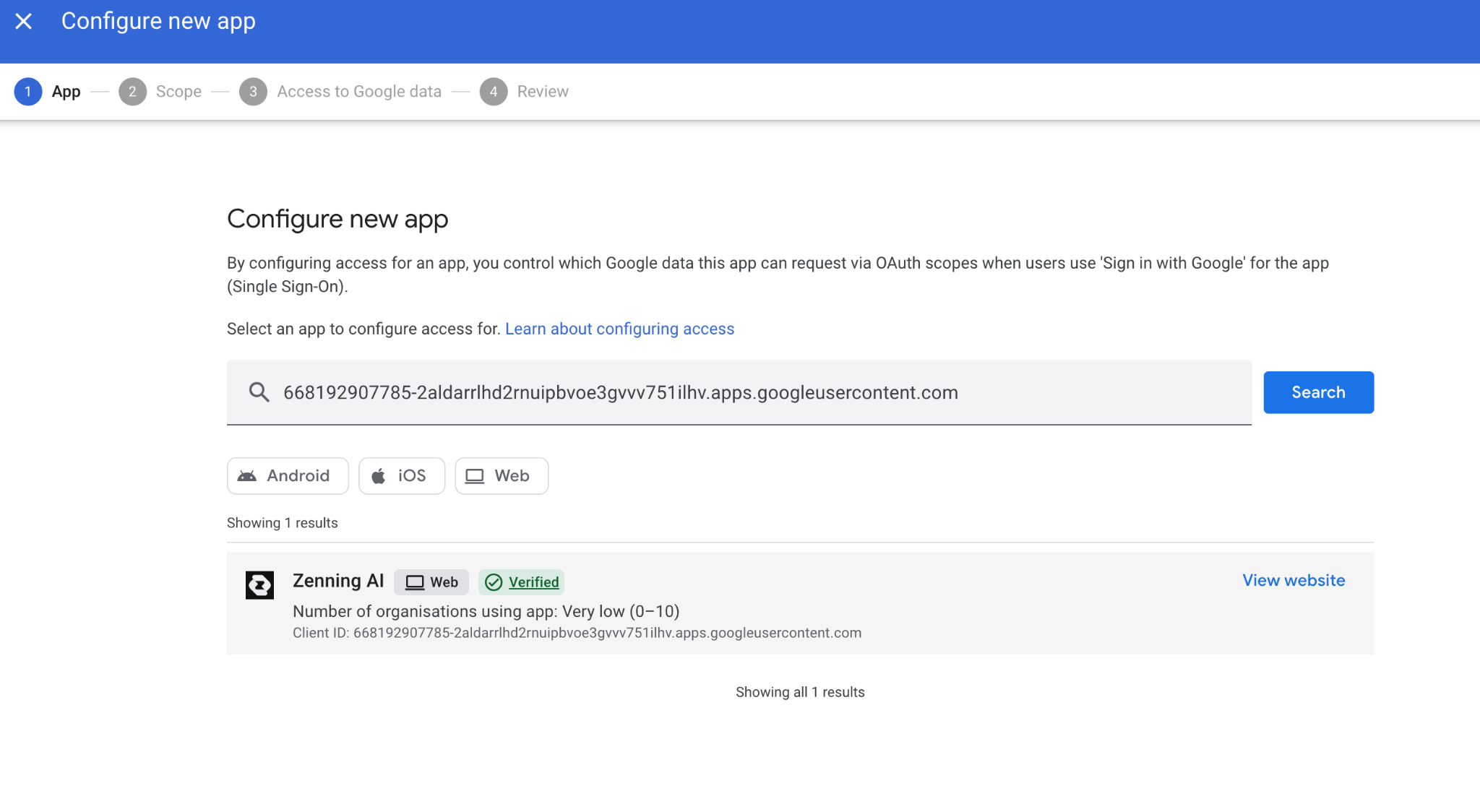
Tap Configure new app, then choose OAuth App Name Or Client ID.
- 4
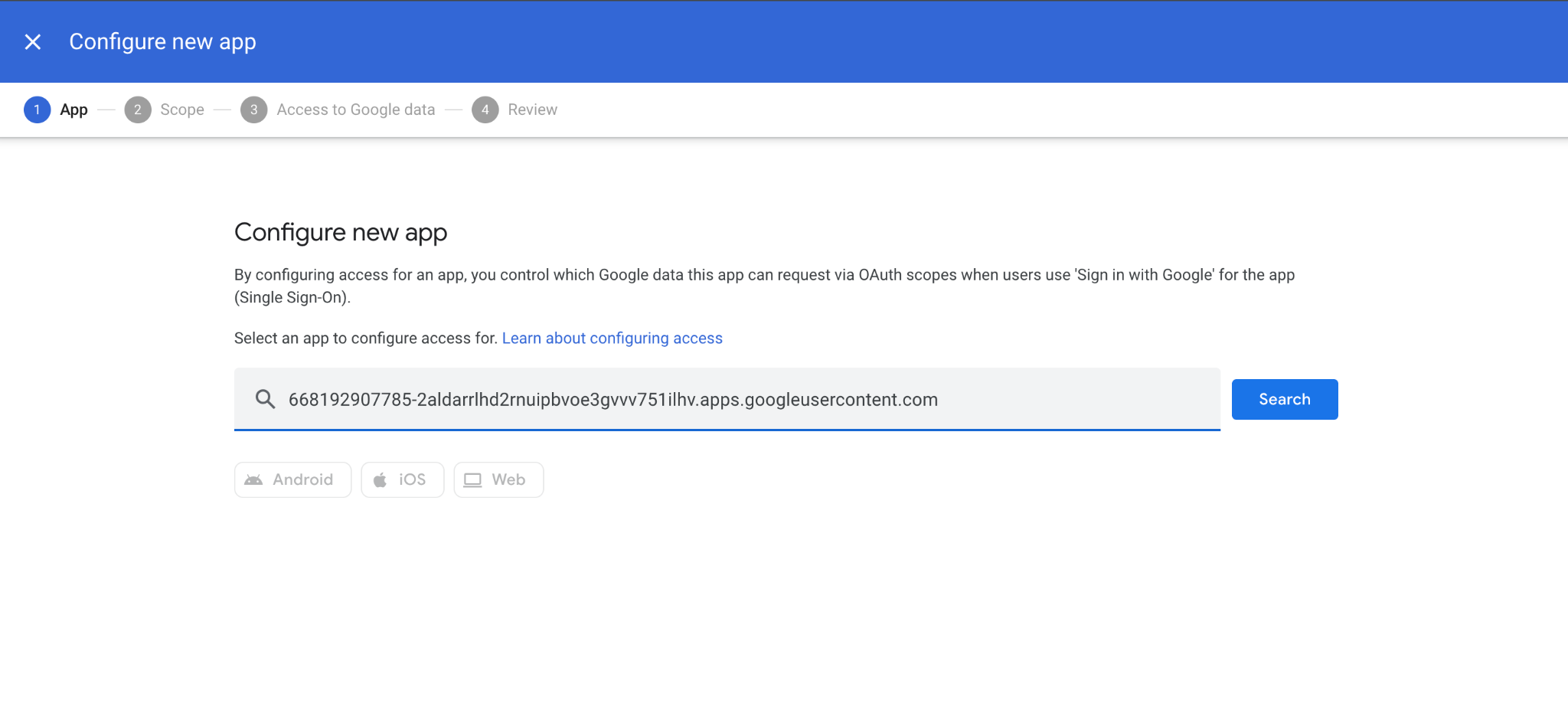
Paste the Zenning AI client ID into the search bar and tap Search: 668192907785-2aldarrlhd2rnuipbvoe3gvvv751ilhv.apps.googleusercontent.com
- 5
Select Zenning AI from the list of search results.
- 6
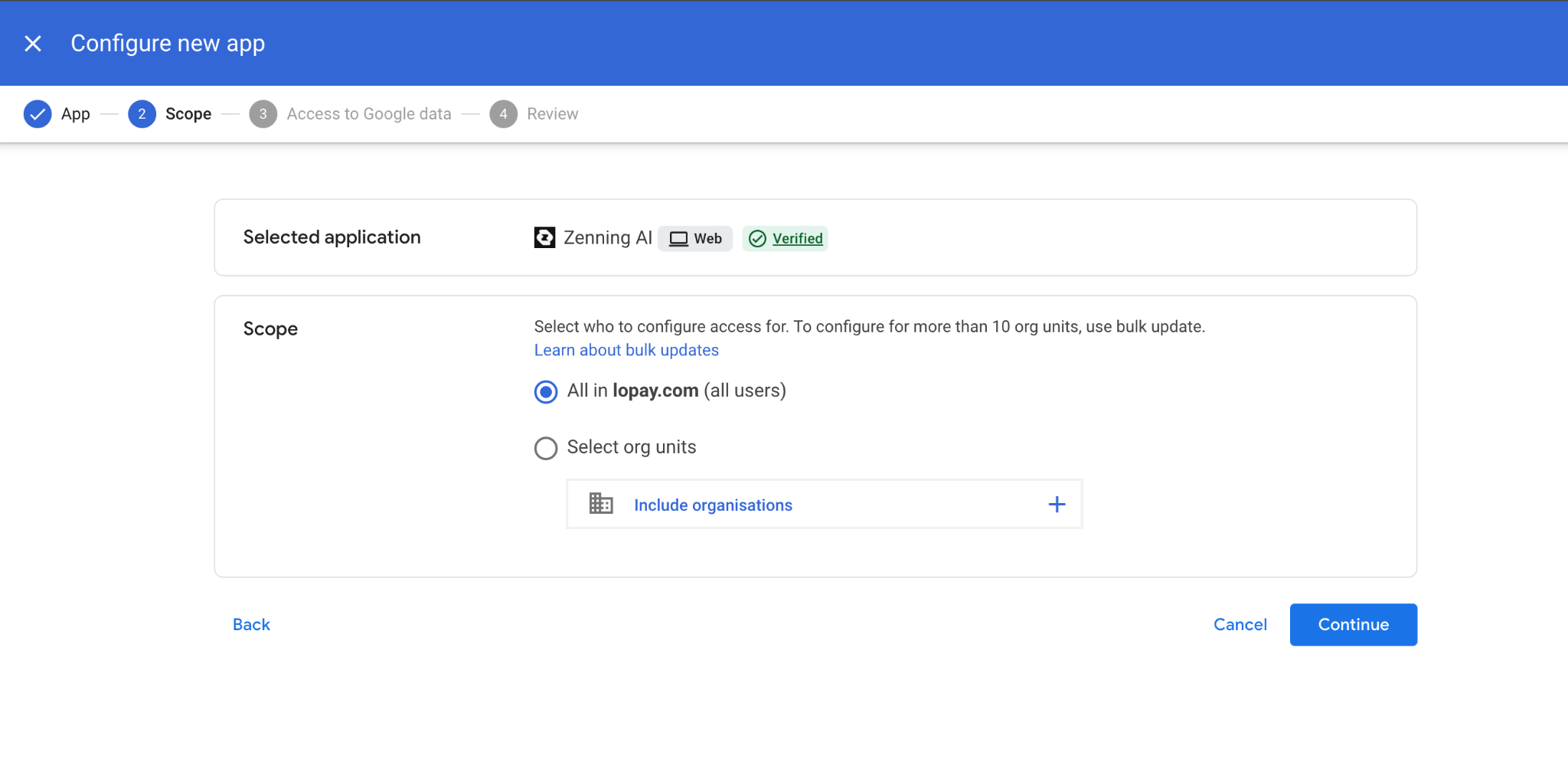
Choose the org-wide scope so all users in your organisation can access it, then tap Continue.
- 7
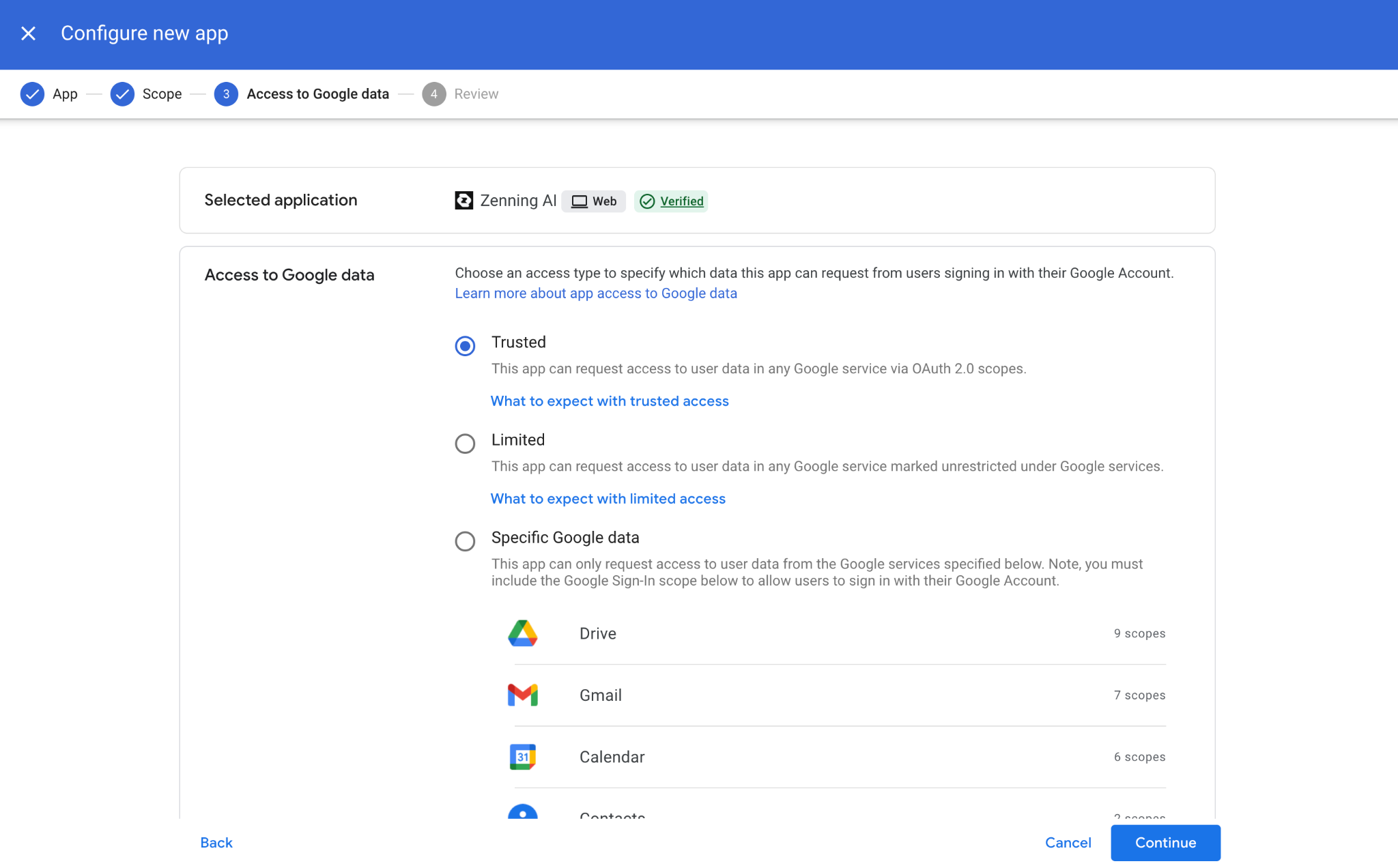
Set the access level to Trusted: can access all Google services.
- 8
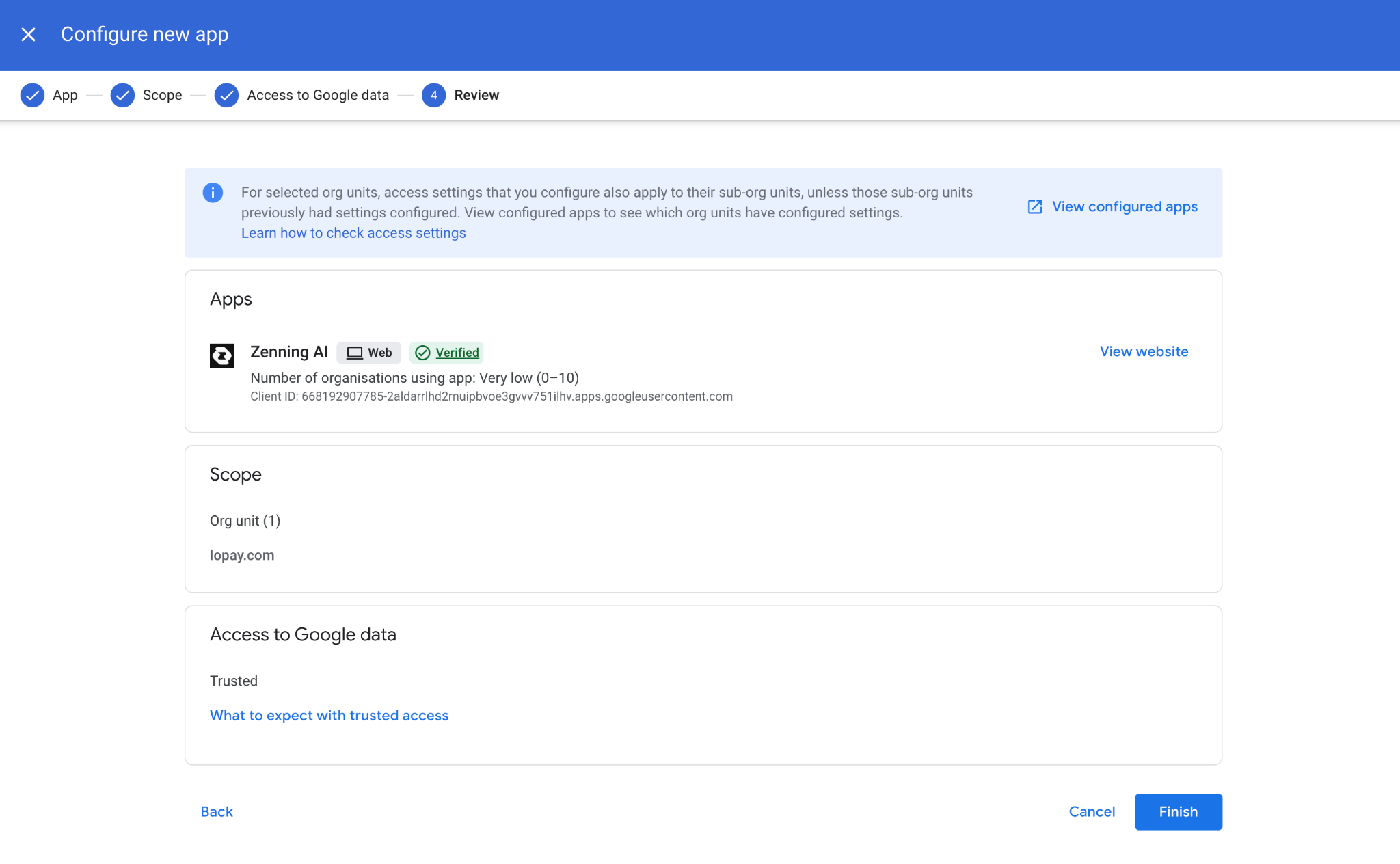
Tap Finish to save your changes.
Tip: Google can take up to a few minutes to roll the new policy out across your organisation. If a teammate sees a "blocked by your admin" warning right after you finish, ask them to wait a few minutes and try again.
What this gives your team
Once Zenning AI is marked as Trusted, anyone in your Workspace can connect their Google account from the Zenning App Directory and use Zenning across Gmail, Drive, Calendar, Docs, Sheets, Slides, Forms, Meet, and Contacts. Each teammate still chooses which scopes to grant when they personally connect, and they can disconnect at any time from their profile settings or from myaccount.google.com/permissions.
Need help?
If anything in the Google Admin console looks different to the steps above, or your team uses a custom app-access policy, get in touch and we will help walk you through it. You can reach us through the Contact page or by replying to any email from the Zenning AI team.